Refer
http://toolsqa.com/selenium-webdriver/headless-browser-testing-selenium-webdriver/
http://www.assertselenium.com/headless-testing/phantom-js-vs-selenium-which-is-a-superior-testing-framework/
Saturday, April 8, 2017

Wednesday, November 26, 2014
POM
POM
- Page Object Model is a design pattern
- It is useful to create object repository for a web page
- Page Object Model advantage is that your operations and flow of UI should be seperated from verification
- Object repository becomes independent of test cases hence can be used for various purpose e.g. we can integrate it with TestNG framework
Sample POM
Structure
Page (POM)
- Page1
- TestScript1
Code-
Page1
package page;
import org.openqa.selenium.By
import org.openqa.selenium.WebDriver
import org.openqa.selenium.chrome.ChromeDriver;
public class Page1
{
WebDriver driver;
By title=By.name("titleName");
public Page1(WebDriver driver)
{
this.driver=driver;
}
public String getPageTitle()
{
return driver.findElement(title).getText();
}
}
TestScript1
package TestScript
import org.openqa.selenium.WebDriver
import org.openqa.selenium.chrome.ChromeDriver;
import Page.Page1;
import org.testng.annotations.BeforeTest
import org.testng.annotations.Test
import org.testng.Assert; //This is used if we are using assert for verification
public class TestScript1
{
WebDriver driver;
Page1 p;
@BeforeTest
public void setupPage1(WebDriver driver)
{
System.setProperty("webdriver.chrome.driver",chromeDriverPath);
driver=new ChromeDriver();
driver.manage().window().maximize();
driver.get(urlToPage1);
}
@Test(priority=0, enabled=true)
public void verifyPageTitle()
{
p=new Page1(driver);
Assert.assertTrue(p.getPageTitle().toLowerCase().contains("page title"));
}
}
Tuesday, November 25, 2014
Selenium: Important packages
org.openqa.selenium.WebDriver
Contains WebDriver Interface need to instantiate a new browserorg.openqa.selenium.chrome.ChromeDriver
Contains the Chrome driver class used to instantiate chrome driver onto the browser which is instantiate using WebDriver class
WebDriver w= new ChromeDriver()
org.openqa.selenium.By
By class is used to locate the various elements on a web pagejava.util.concurrent.TimeUnit
Used for implicit waitWebDriver w= new ChromeDriver()
w.manage().timeouts().implicitlyWait(10, TimeUnit.SECONDS)
org.openqa.selenium.support.ui.WebDriverWait
org.openqa.selenium.support.ui.ExpectedConditions
Used for explicit waitWebDriverWait w= new WebDriverWait(driver, 5)
Use wait object with ExpectedConditions on
portions where you need the explicit wait to occur-
w.until(ExpectedConditions.visibilityOfElementLocated(By.name("id")))
org.openqa.selenium.support.ui.Select
Used to control & acccess the drop down valuesSelect s= new Select(driver.findElement(By.name("elementName")))
s.selectByVisibleText("Value")
OR
s.selectByValue("value")
org.openqa.selenium.interactions.Actions
org.openqa.selenium.interactions.Action
Actions is user-facing API used to perform complex user gesture. This can be used instead of directly using keyboard or mouse
Instantiate a new Actions object.
Actions a= new Actions(driver)
Instatiate an Action using above Actions object
Action a1= a.moveToElement(driver.findElement(By.name("elementName"))).build()
Perform the Action
a1.perform();
Actions are very useful for some of the complex user gesture which can't be perform using simple locaters e.g. following code will do a right click on an element
Instantiate a new Actions object.
Actions a= new Actions(driver)
Instatiate an Action using above Actions object
Action a1= a.moveToElement(driver.findElement(By.name("elementName"))).contextClick().build()
Perform the Action
a1.perform();
More details can be found here under "Building a Series of Multiple Actions"
org.testng.annotations.DataProvider;
org.testng.annotations.Test;
org.testng.annotations.BeforeTest;
org.testng.annotations.AfterTest;
All the above packages are used when we use Annotations in TestNG framework. Annotations in TestNG framework are a way to control the code execution below them. Annotations are preceded with an @
Summary of various TestNG Annotations (For more details on TestNG and Annotations usage example, click here)
@BeforeSuite: The annotated method will be run before all tests in this suite have run.
@AfterSuite: The annotated method will be run after all tests in this suite have run.
@BeforeTest: The annotated method will be run before any test method belonging to the classes inside the tag is run.
@AfterTest: The annotated method will be run after all the test methods belonging to the classes inside the tag have run.
@BeforeGroups: The list of groups that this configuration method will run before. This method is guaranteed to run shortly before the first test method that belongs to any of these groups is invoked.
@AfterGroups: The list of groups that this configuration method will run after. This method is guaranteed to run shortly after the last test method that belongs to any of these groups is invoked.
@BeforeClass: The annotated method will be run before the first test method in the current class is invoked.
@AfterClass: The annotated method will be run after all the test methods in the current class have been run.
@BeforeMethod: The annotated method will be run before each test method.
@AfterMethod: The annotated method will be run after each test method.
@Test: The annotated method is a part of a test case
Note- Here is the hierarchy for the Annotations in TestNG framework and they will be called in that order-
BeforeSuite
BeforeTest
BeforeClass
BeforeMethod
Test
AfterMethod
AfterClass
AfterTest
AfterSuite
A very good example using all these Annotations can be referred here
Note- Here is the hierarchy for the Annotations in TestNG framework and they will be called in that order-
BeforeSuite
BeforeTest
BeforeClass
BeforeMethod
Test
AfterMethod
AfterClass
AfterTest
AfterSuite
Thursday, September 25, 2014
Selenium General Question I- Accesing data from Excel
How to read data from Excel file using Java code and POI API
1. We should know what all packages we need to import
Java.io.file
POI
org.apache.poi.xssf.usermodel.XSSFWorkbook; - Create workbook object
org.apache.poi.xssf.usermodel.XSSFSheet; - Create particular sheet object to access specific sheet in workbook
org.apache.poi.xssf.usermodel.XSSFCell; -
org.apache.poi.xssf.usermodel.XSSFRow; -
2. We should know what all objects we need to create to read the excel file
FileInputStream f = new FileInputStream(new File(String path));
XSSFWorkbook w= new XSSFWorkbook(f); // Creating object for the workbook
XSSFSheet s= w.getSheet(String sheetname); // Creating object for the specific sheet based on the sheet name
3. Accessing Rows and Columns
startRow= sheet.getFirstRowNum();
endRow=sheet.getLastRowNum();
startCol=sheet.getRow(0).getFirstCellNum(); // getFirstCellNum() Method belongs to XSSFRow class
endCol=sheet.getRow(0).getLastCellNum(); Note- getLastCellNum() Gets the index of the last cell contained in this row PLUS ONE.
4. Accessing from a cell
s.getRow(int i).getCell(int cellNum).getStringCellValue() // getStringCellValue() is method of XSSFCell class. It returns value from a cell
Note- There is a overloaded method getCell(int cellnum, Row.MissingCellPolicy policy) too, which is useful to handle blank cells. e.g. getCell(int j, Row.CREATE_NULL_AS_BLANK) will return blank if the cell is null. Sometimes null cells throws exceptions.
Full program is below
public static String[][] readExcelData(String module)
{
String path="H:\\Technical\\Selenium\\Workspace\\NavigatorSIT\\NavigatorPackages\\Resources\\Data\\data1.xlsx";
String[][] tabArray=null;
FileInputStream fis = null;
int startRow,startCol, endRow, endCol,ci=0,cj;
try
{
fis = new FileInputStream(new File(path));
XSSFWorkbook workbook = new XSSFWorkbook(fis);
XSSFSheet sheet = workbook.getSheet(module);
/*---[Start] Identifying the rows an columns in module sheet---*/
startRow= sheet.getFirstRowNum();
endRow=sheet.getLastRowNum();
startCol=sheet.getRow(0).getFirstCellNum();
// getLastCellNum() Gets the index of the last cell contained in this row PLUS ONE.
endCol=sheet.getRow(0).getLastCellNum();
/*---[End] Identifying the rows and columns in Main sheet---*/
/*System.out.println("StartRow " + startRow + " EndRow " + endRow +
" startCol " + startCol + " endCol " + endCol);*/
tabArray=new String[endRow-startRow][endCol-startCol];
for(int i=startRow+1;i<=endRow;i++)
{
cj=0;
for (int j=startCol;j<endCol;j++,cj++)
{
tabArray[ci][cj]=sheet.getRow(i).getCell(j, Row.CREATE_NULL_AS_BLANK).getStringCellValue();
if(tabArray[ci][cj].equalsIgnoreCase(""))
tabArray[ci][cj]="null";
// System.out.println(tabArray[ci][cj]);
}
ci++;
}
}
catch (Exception e)
{
System.out.println(e.toString());
}
return(tabArray);
}
1. We should know what all packages we need to import
Java.io.file
POI
org.apache.poi.xssf.usermodel.XSSFWorkbook; - Create workbook object
org.apache.poi.xssf.usermodel.XSSFSheet; - Create particular sheet object to access specific sheet in workbook
org.apache.poi.xssf.usermodel.XSSFCell; -
org.apache.poi.xssf.usermodel.XSSFRow; -
2. We should know what all objects we need to create to read the excel file
FileInputStream f = new FileInputStream(new File(String path));
XSSFWorkbook w= new XSSFWorkbook(f); // Creating object for the workbook
XSSFSheet s= w.getSheet(String sheetname); // Creating object for the specific sheet based on the sheet name
3. Accessing Rows and Columns
startRow= sheet.getFirstRowNum();
endRow=sheet.getLastRowNum();
startCol=sheet.getRow(0).getFirstCellNum(); // getFirstCellNum() Method belongs to XSSFRow class
endCol=sheet.getRow(0).getLastCellNum(); Note- getLastCellNum() Gets the index of the last cell contained in this row PLUS ONE.
4. Accessing from a cell
s.getRow(int i).getCell(int cellNum).getStringCellValue() // getStringCellValue() is method of XSSFCell class. It returns value from a cell
Note- There is a overloaded method getCell(int cellnum, Row.MissingCellPolicy policy) too, which is useful to handle blank cells. e.g. getCell(int j, Row.CREATE_NULL_AS_BLANK) will return blank if the cell is null. Sometimes null cells throws exceptions.
Full program is below
public static String[][] readExcelData(String module)
{
String path="H:\\Technical\\Selenium\\Workspace\\NavigatorSIT\\NavigatorPackages\\Resources\\Data\\data1.xlsx";
String[][] tabArray=null;
FileInputStream fis = null;
int startRow,startCol, endRow, endCol,ci=0,cj;
try
{
fis = new FileInputStream(new File(path));
XSSFWorkbook workbook = new XSSFWorkbook(fis);
XSSFSheet sheet = workbook.getSheet(module);
/*---[Start] Identifying the rows an columns in module sheet---*/
startRow= sheet.getFirstRowNum();
endRow=sheet.getLastRowNum();
startCol=sheet.getRow(0).getFirstCellNum();
// getLastCellNum() Gets the index of the last cell contained in this row PLUS ONE.
endCol=sheet.getRow(0).getLastCellNum();
/*---[End] Identifying the rows and columns in Main sheet---*/
/*System.out.println("StartRow " + startRow + " EndRow " + endRow +
" startCol " + startCol + " endCol " + endCol);*/
tabArray=new String[endRow-startRow][endCol-startCol];
for(int i=startRow+1;i<=endRow;i++)
{
cj=0;
for (int j=startCol;j<endCol;j++,cj++)
{
tabArray[ci][cj]=sheet.getRow(i).getCell(j, Row.CREATE_NULL_AS_BLANK).getStringCellValue();
if(tabArray[ci][cj].equalsIgnoreCase(""))
tabArray[ci][cj]="null";
// System.out.println(tabArray[ci][cj]);
}
ci++;
}
}
catch (Exception e)
{
System.out.println(e.toString());
}
return(tabArray);
}
Wednesday, September 24, 2014
Eclipse configuration
1. Adding existing project folders to the project explorer in eclipse
File->Import->General->Existing Projects Into Workspace->Select root directory of project->Finish
More Info
http://stackoverflow.com/questions/3924229/adding-existing-project-folders-to-the-project-explorer-in-eclipseMore Info
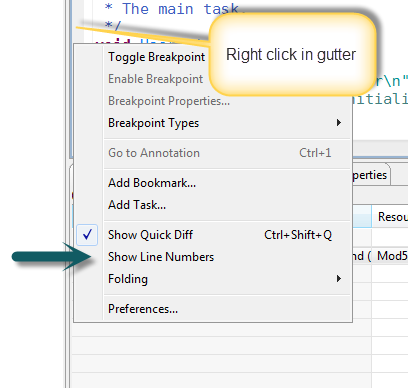
2. Configuring Eclipse line numbers
Window -> Preferences -> General -> Editors -> Text Editors -> Check the Show line numbers check box.
OR
Subscribe to:
Comments (Atom)